UltraFit360 has a native connector for ChatGPT and Claude, built on the Model Context Protocol (MCP). Once connected, either assistant can read your logged workouts, nutrition, body metrics, and AI coaching memory — and, with your confirmation, log meals, build workout programs, swap exercises, and update your goals. No exporting data, no copy-pasting your macros into a chat window.
This guide walks through connecting both, with real screenshots of every step, plus actual conversations showing what it can do.
Connecting in ChatGPT
Open ChatGPT and search the plugin marketplace for "UltraFit360":
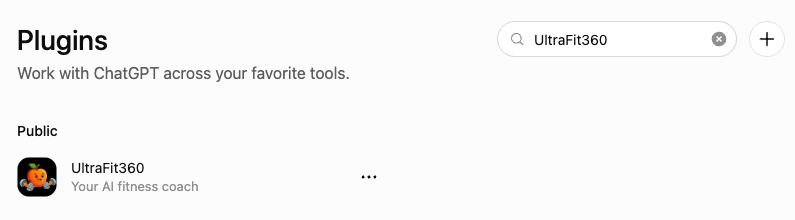
UltraFit360 shows up under "Public" connectors, already reviewed and published.
Opening the listing shows the full capability description and a few starter prompts you can try immediately:
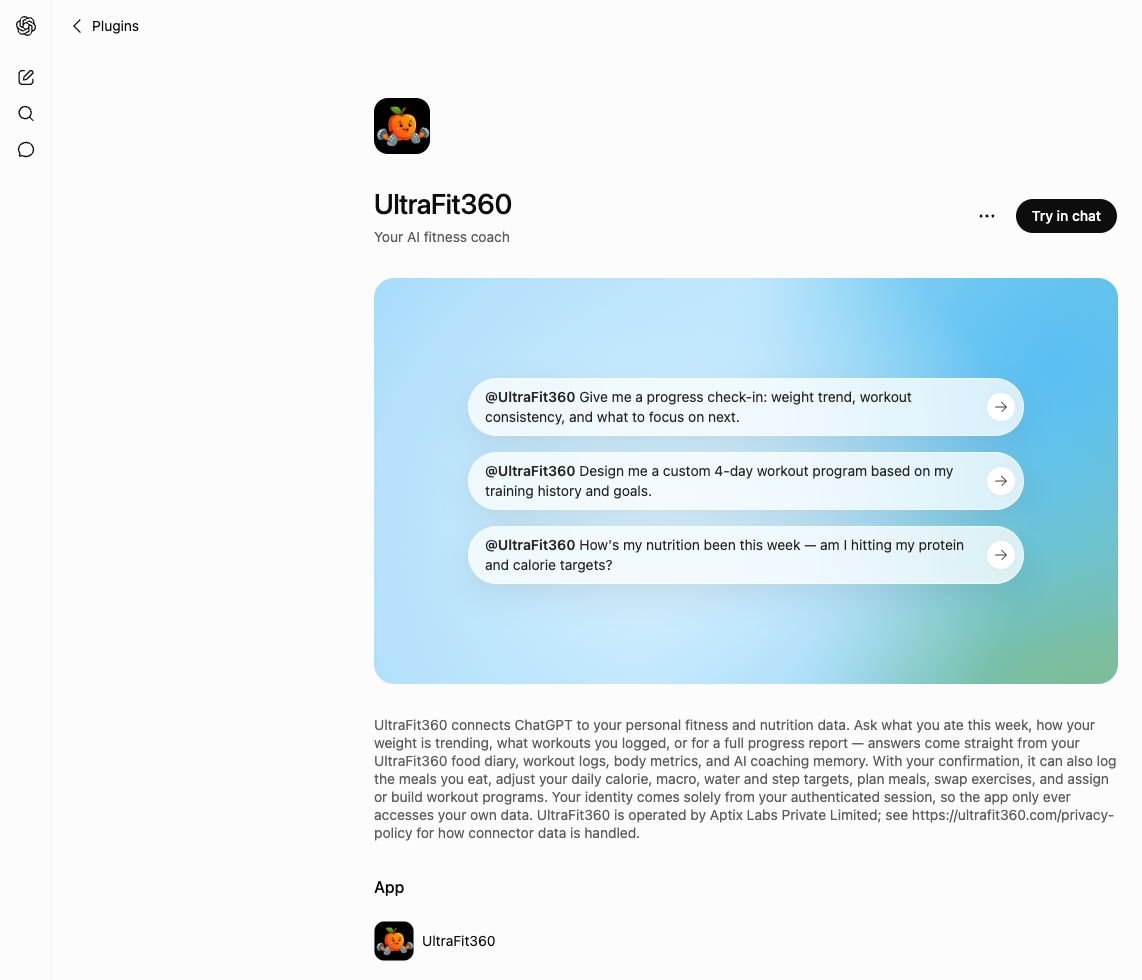
The listing page — click "Try in chat" to connect.
You'll be redirected to sign in with your existing UltraFit360 account — the same one you use in the app. No separate password, no API key:
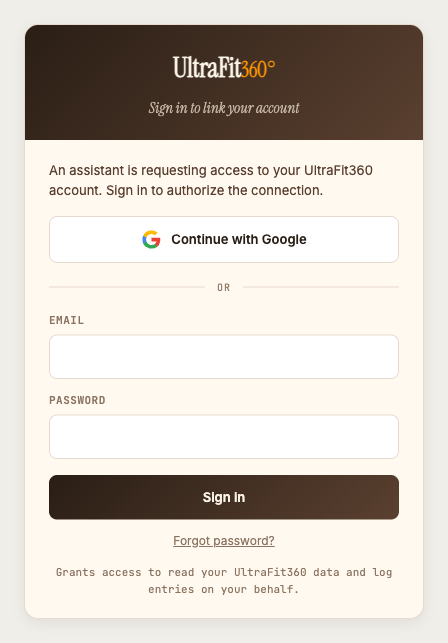
Sign in with Google or your UltraFit360 email — that's the entire setup.
Once connected, it shows up alongside your other installed plugins under Settings → Plugins:
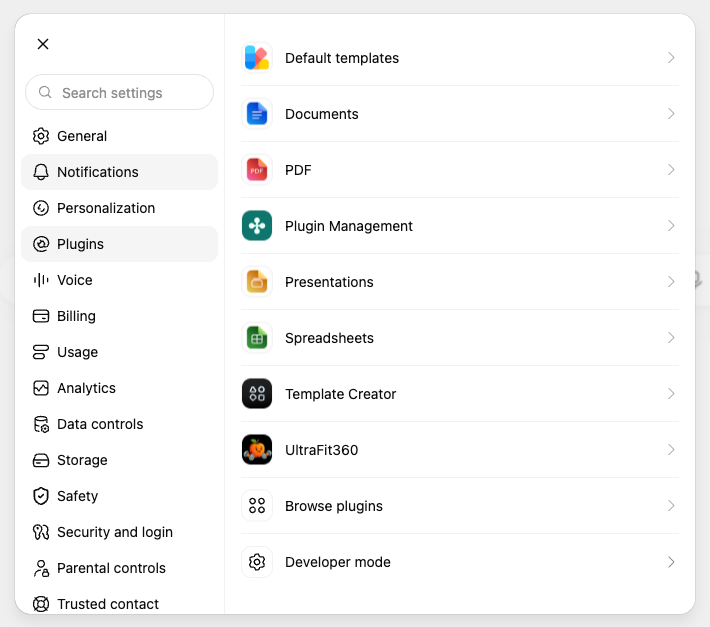
Manage or disconnect it any time from here.
Connecting in Claude
Claude uses the same MCP server through its custom connector flow. Go to Settings → Connectors → Add connector → Add custom connector, and enter the UltraFit360 MCP address:
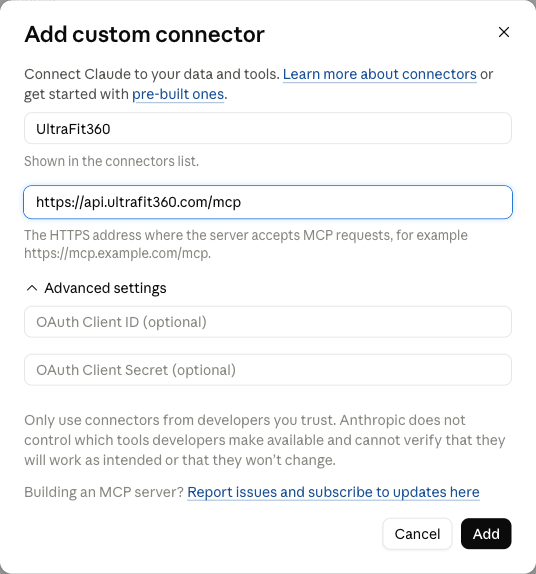
Server URL: https://api.ultrafit360.com/mcp
Clicking "Add" opens the same UltraFit360 sign-in as above. Once connected, Claude gives you something ChatGPT doesn't: a permission switch for each individual tool, not just one blanket scope.
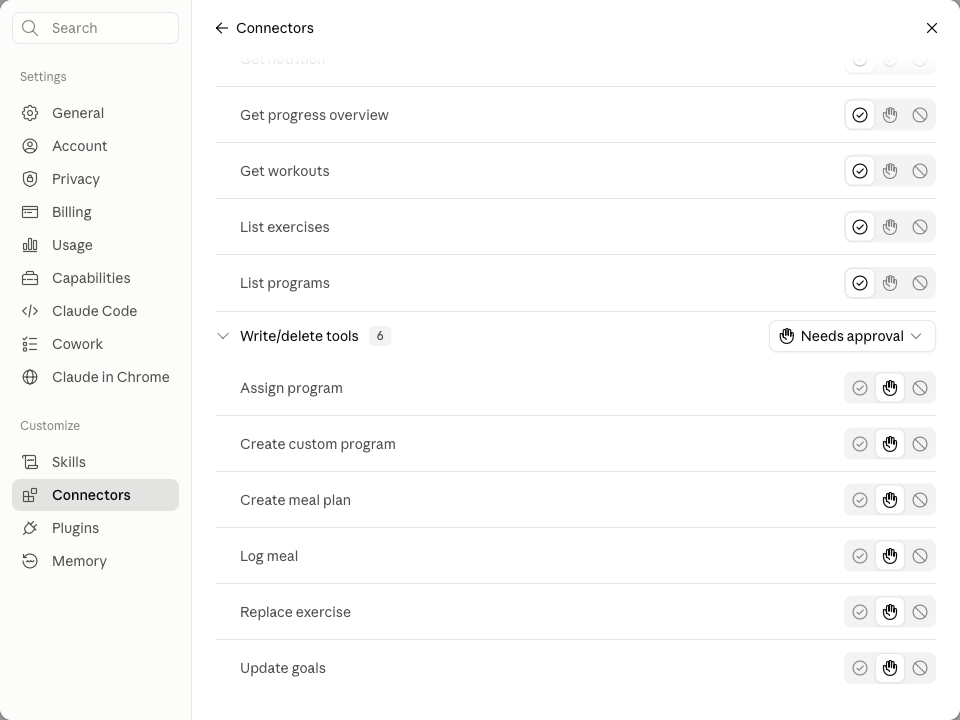
Read-only tools (nutrition, workouts, progress) set to "Always allow"; write tools (logging, program changes) left on "Needs approval."
When Claude wants to use a tool that's set to "Needs approval," it shows a clear prompt before doing anything:
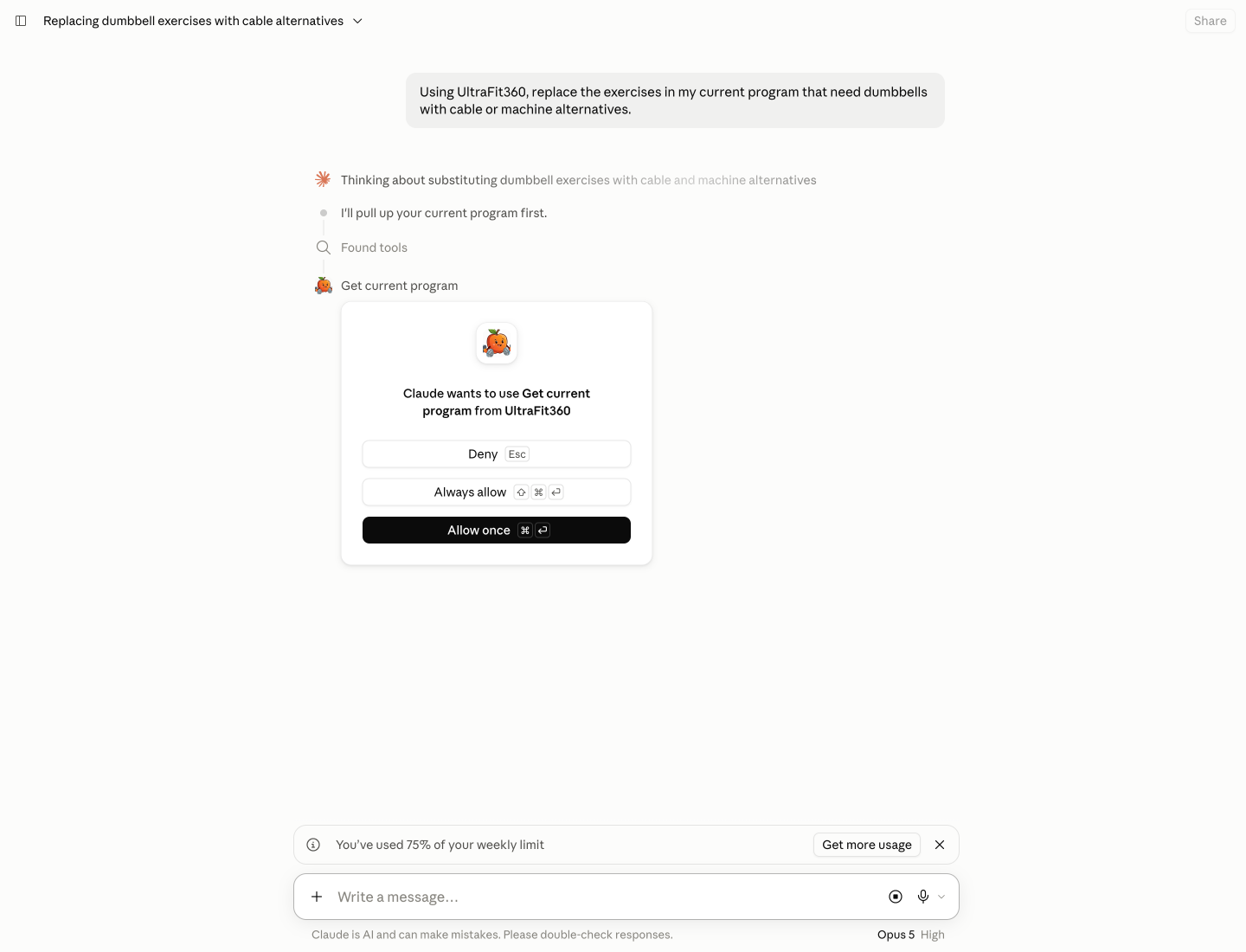
Deny, allow once, or always allow — right from the chat.
See it in action
Here's what actual conversations look like, once connected.
"Analyze my last 30 days of training"
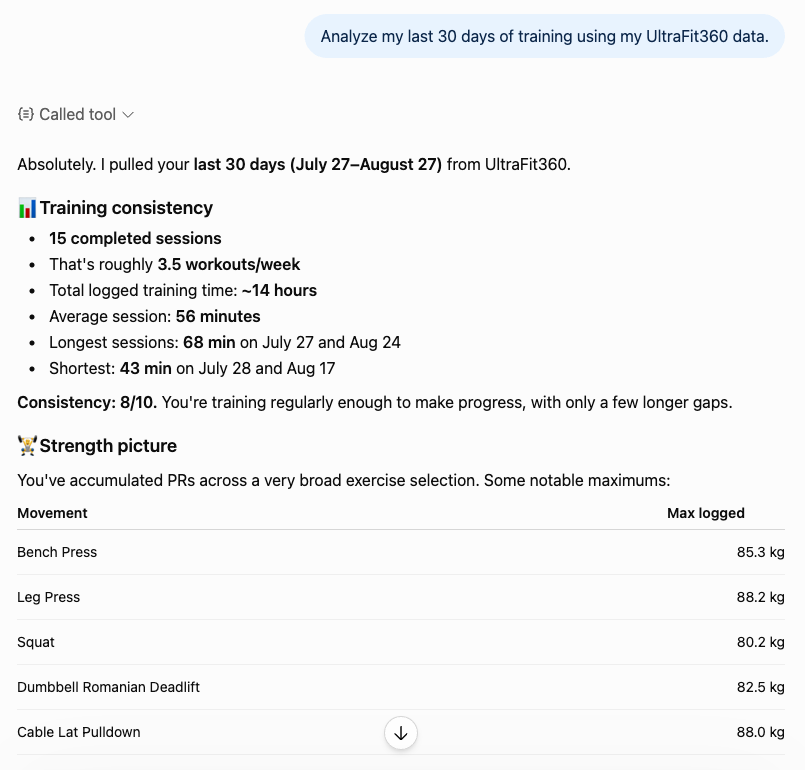
Real session counts, real PRs, pulled straight from the workout log — not a guess based on what you typed into the chat.
"Create a 4-day hypertrophy program for me"
Before writing anything, it explains exactly what will change and asks for confirmation:
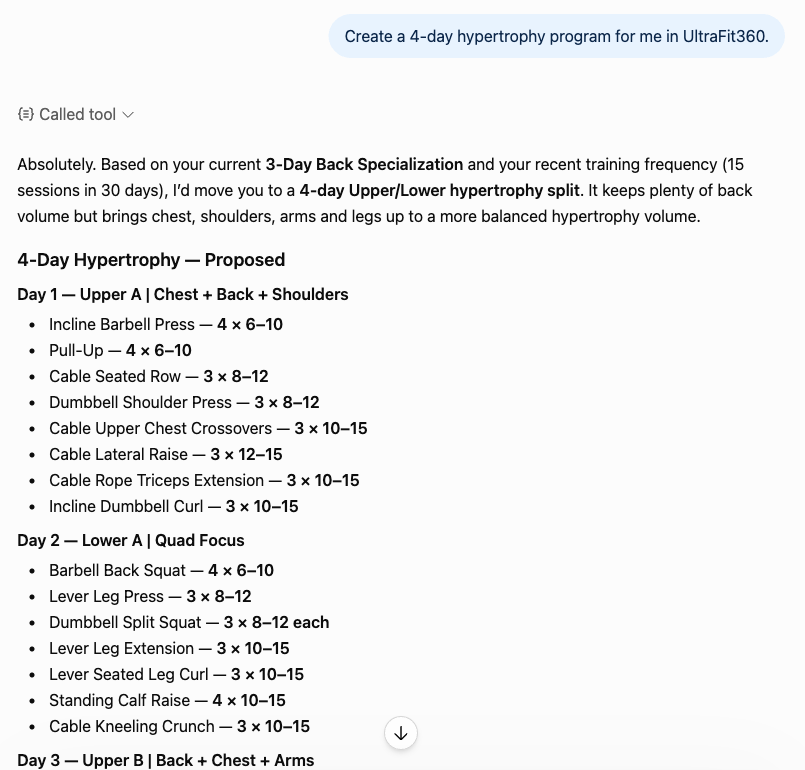
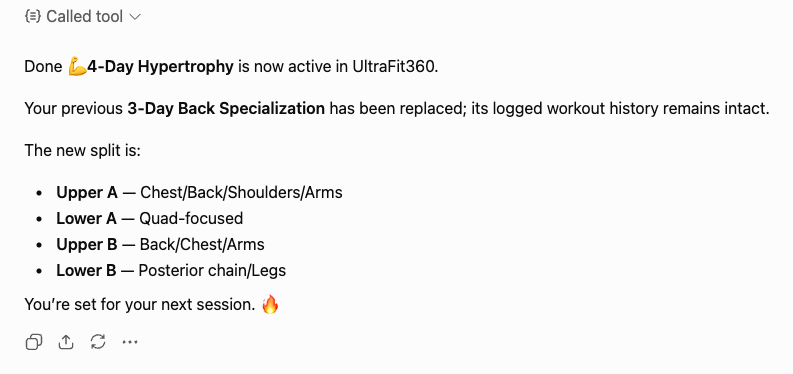
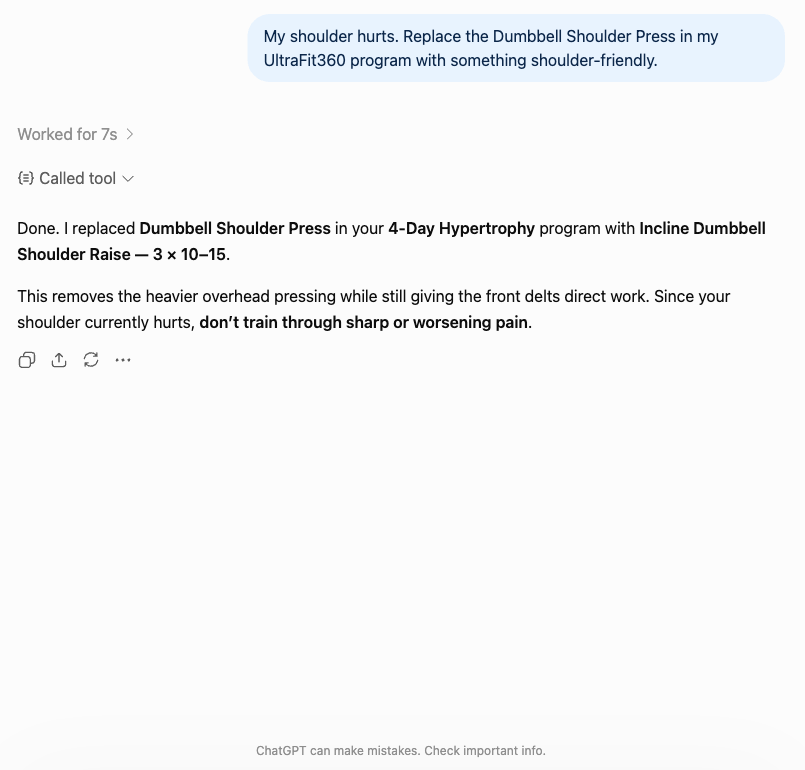
"My shoulder hurts — replace the exercises that aggravate it"
A single-exercise swap doesn't need the same confirmation step — it just happens:
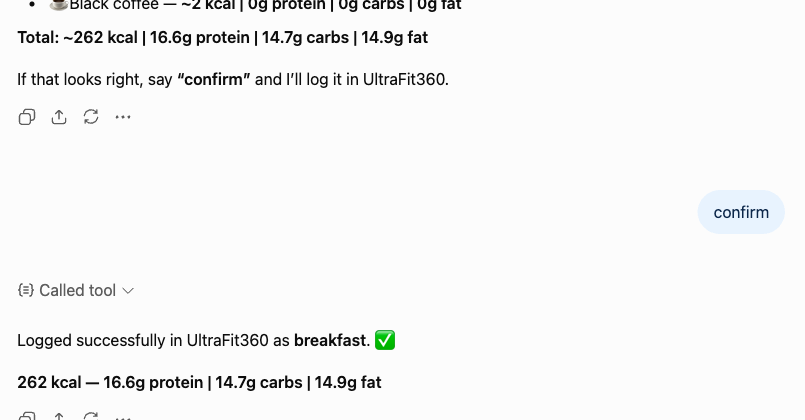
"Log this meal: 2 eggs, toast, butter, and coffee"
"What are my current PRs, and how many sessions this month?" (in Claude)
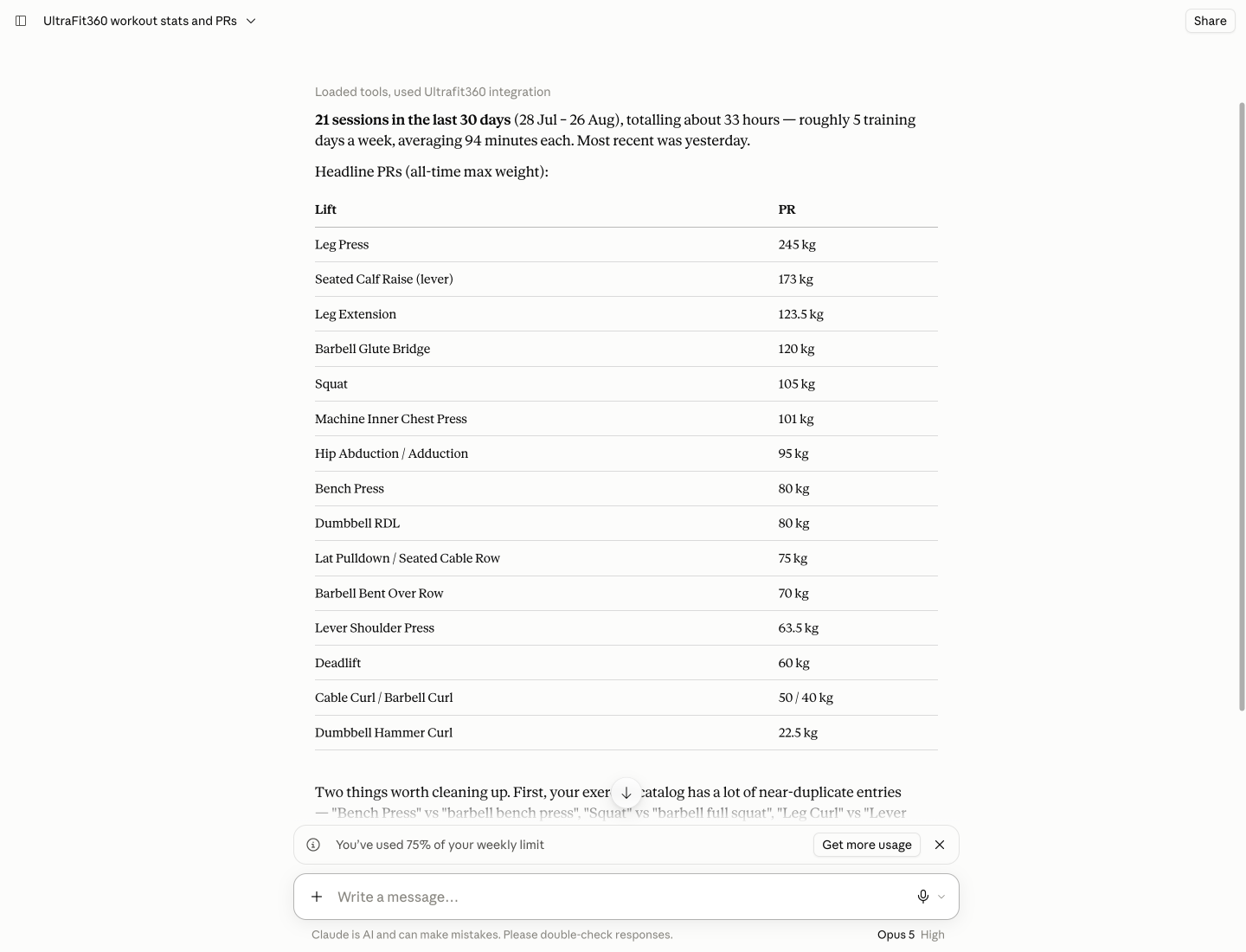
Claude didn't just list the numbers — it flagged that several exercises were logged under near-duplicate names ("Bench Press" vs "barbell bench press"), splitting the PR history across entries. That kind of data-hygiene catch is a nice side effect of handing a model direct, structured access to your log instead of a summary.
"Give me a progress summary — nutrition, workouts, body metrics" (in Claude)
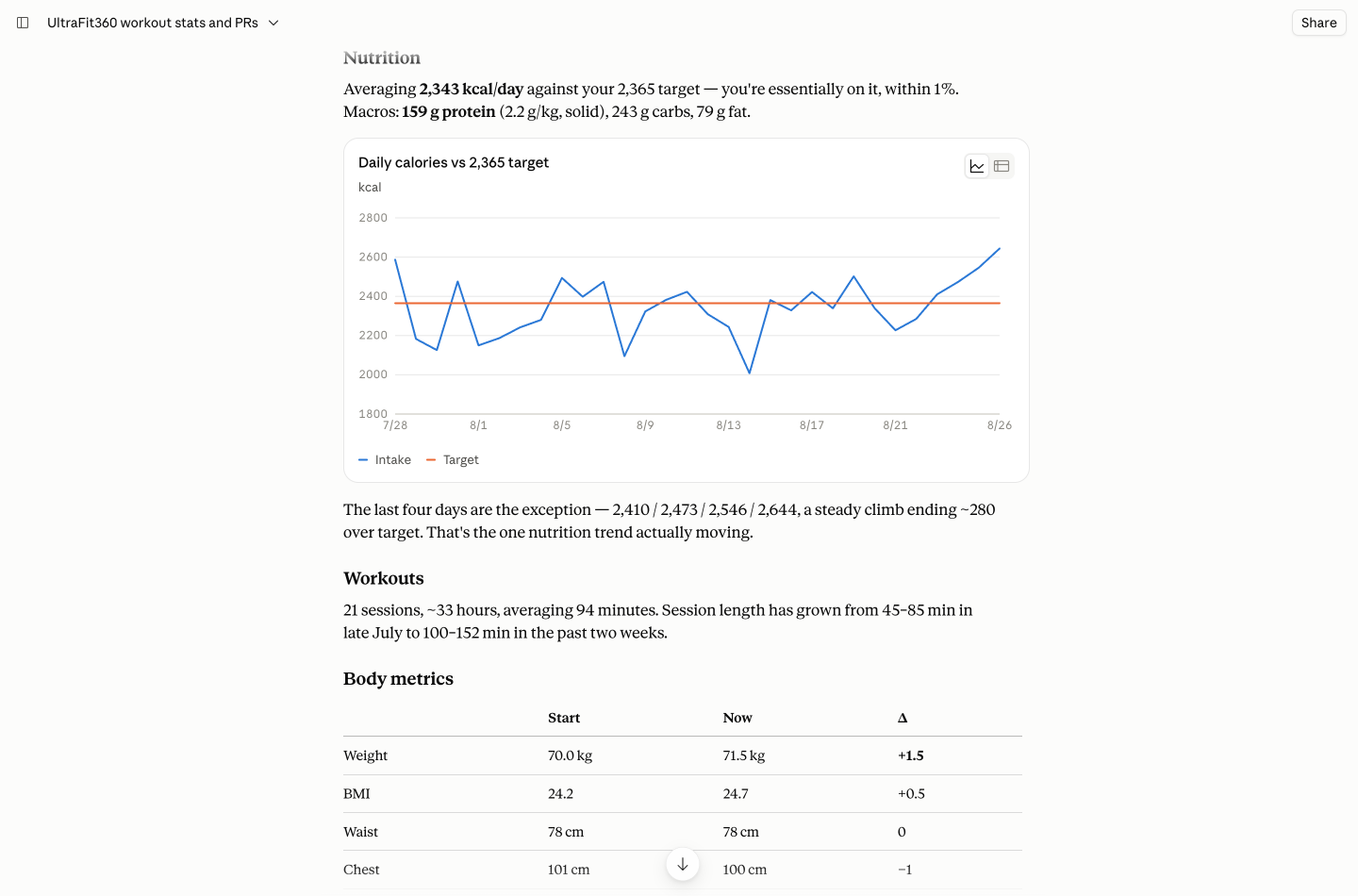
Claude rendered an actual chart of daily calories against target, alongside a body-metrics table pulled straight from the log — no manual export or spreadsheet needed.
Frequently asked questions
Do I need a separate account?
No — you sign in with your existing UltraFit360 account. There's no separate login or API key to manage for either ChatGPT or Claude.
Can they see my past workouts and meals?
Yes. Once connected, both can read your logged workouts, nutrition, body metrics, and coaching memory to answer questions or generate a progress report.
Can they change my program or log food without asking?
Write actions generally ask for confirmation first — either a plain-language check ("say confirm") in ChatGPT, or a permission dialog in Claude. In Claude you can also set individual tools to "Always allow" or "Blocked" ahead of time.
What's actually different between the two?
Same login, same underlying capabilities. Claude additionally exposes per-tool permission controls — 14 individual switches instead of one blanket read+write scope.
UltraFit360 is a free AI fitness coach with weekly coaching reports, workout programs and photo meal logging. See all features.
Try the All-in-One AI Fitness Coach
Meal tracking, workouts, coaching reports, progress photos — all free in one app, now inside ChatGPT and Claude too.